
Introduction
As the final project for my application development course, I was placed in a team of four (eventually three) students to individually create one section of a catalog website for a fictional tool sales & rental company. The simulated website would be for internal use only, managing four distinct parts of the business: purchasing, receiving, rentals, and sales.
I took on the purchasing section of the website, which managed purchase orders with vendors. This is a full-CRUD project where the user can view, create, update, and delete purchase orders.
Technology
The project was created using .Net Framework 4.8, using ASP.Net web forms and Entity Framework structure, written in C#. It used LINQ to make changes to the database (managed in SQL Server Management Studio). For ease of development, Bootstrap was used to style page components.
Tasks
The following lists outline the features that were required for the purchasing page.
Required Display Features
- Vendor dropdown
- Display selected vendor information
- Display order totals
- Display order details
- Display suggested vendor products and inventory information
- An "Add to Active Order" feature, which removes the item from the suggested items list when it is added to the purchase order
- A "Remove from Active Order" feature, which adds the item back to the suggested items list
- An "Update Active Order" feature, which updates the order totals whenever an item price or quantity is updated on the order
Required Input Processing Features
- Retrieve current active order for the selected vendor
- Save purchase order
- Place purchase order
- Delete purchase order
- Populate vendor dropdown
- Obtain vendor information
- Populate vendor inventory section
There are three types of orders:
- Placed orders: These are orders that were sent to the vendor and exist in the system. You cannot delete placed orders.
- (Unplaced) active orders: These are orders that are saved in the system but have not been placed/sent to the vendor. You can update and delete these orders.
- Unsaved/unplaced/newly-generated suggested orders: These are orders suggested by the system for a new order. These only appear on the page if there are no placed or active orders for the selected vendor. These orders have not been saved to the system and cannot be deleted. If the update button is pressed, the order is saved and becomes an active order.
Database
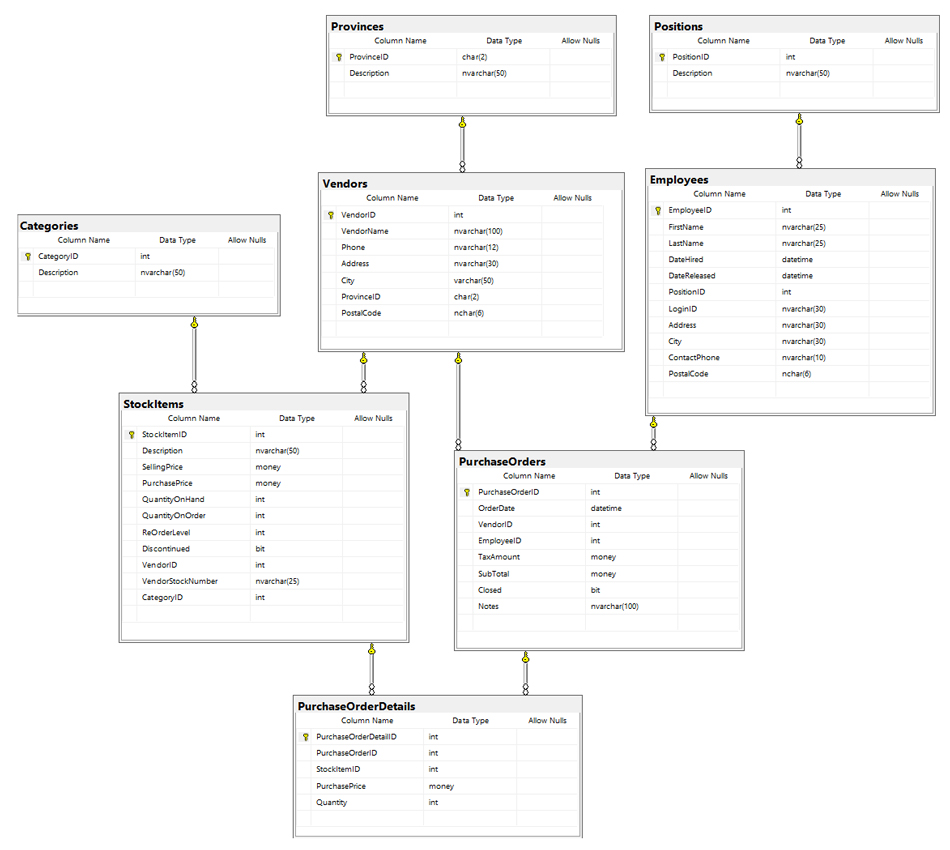
The database was already provided (pre-populated) by the course instructor, our team simply had to connect the application to the database. The purchasing section encompasses the following tables on the Entity-Relationship Diagram below (click for full view):
click image for full view
Page Design
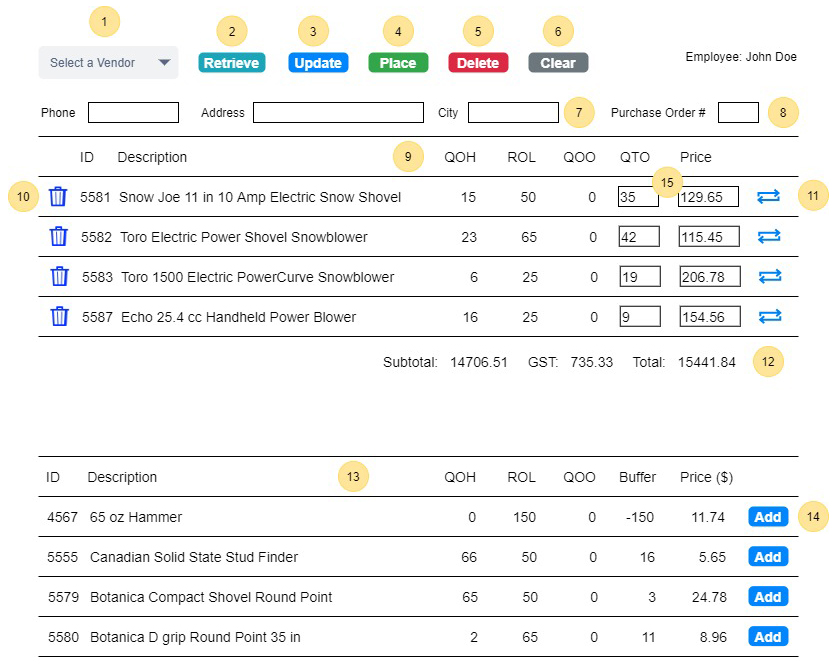
I created a UI design document that outlined all of the functions and actions involved in the purchasing page. Every event, button click, function, and database change was accounted for. The design was created based on the required features, and only interactable features of the page are numbered for documentation purposes. A breakdown of all the page features is given in the next section.
click image for full view
Tables at the end of the document detailed the ViewModel classes. Each table shows the properties for ViewModel class, along with its type, and what database table it ties to.
Breakdown of Features
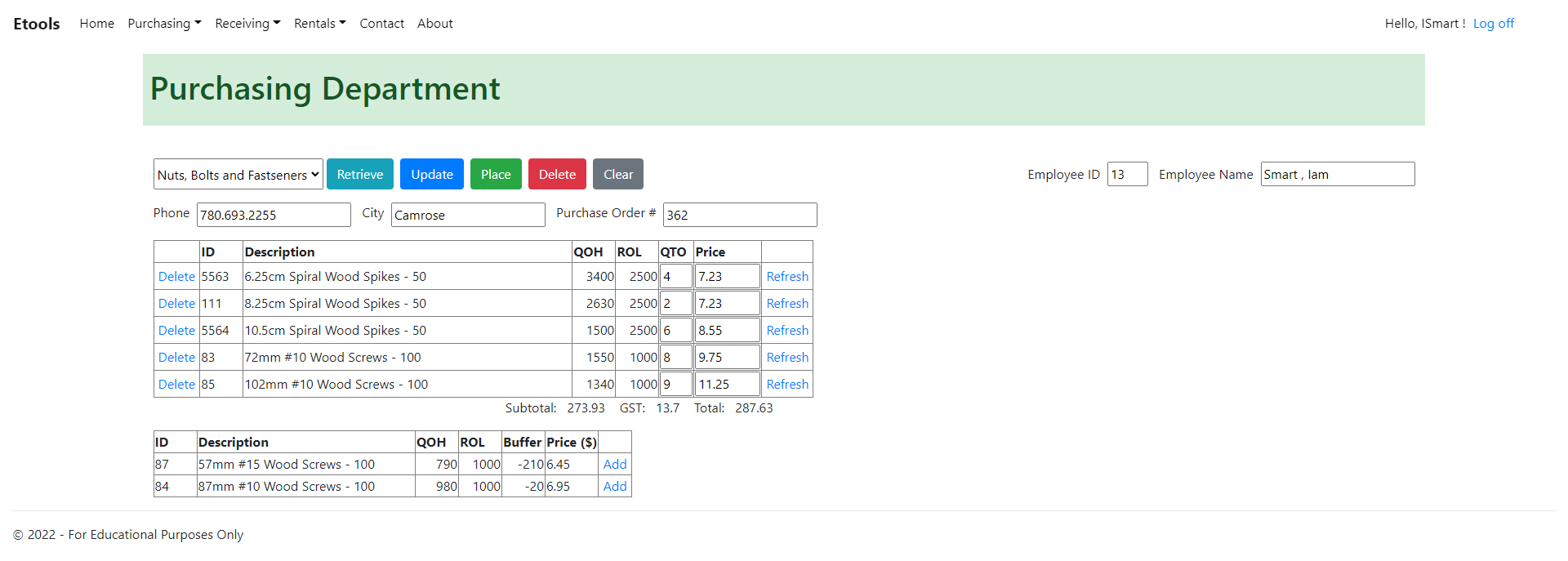
click image for full view
Page Features
- Dropdown box: Vendor selector.
- Retrieve button: Retrieves vendor information and either the last placed order, the active unplaced order, or a newly-generated suggested order.
- Update button: Updates the current active order or saves the suggested order.
- Place button: Places the order on the screen whether it has been saved in the system or not.
- Delete button: Deletes the order on the page. Only works for active unplaced orders. You cannot delete placed or unsaved suggested orders.
- Employee ID & Name: Information about the logged in user.
- Phone & City: Phone number and city of vendor.
- Purchase order number: Number of the last placed purchase order or active unplaced order. No number will be displayed for newly-generated suggested orders.
- Upper table: The order table. Contains the last placed purchase order, the active unplaced order, or the newly-generated suggested order.
- Order table - Delete: Delete button. Removes the item from the order table and places it in the lower table (additional suggested items table).
- Order table - QOH: Quantity on Hand.
- Order table - ROL: Reorder Level, the item's minimum amount in the system. eTools should order more should the QOH < ROL.
- Order table - QTO: Quantity to Order.
- Order table - Price: Price of the item on the order. May not be the same as the price of the item in the system due to price changes over time or discounts from the vendor.
- Order table - Refresh: Refresh button. Updates the order totals if any item's QTO or Price was changed.
- Lower table: Additional suggested items table. Displays a few select items to order.
- Suggested Items table - Buffer: Item buffer amount, the value of the QOH minus the ROL. Employees should keep an eye on this number once it gets low and should reorder if very low or negative.
- Suggested Items table - Add: Add item button. Adds that item to the Order table and removes it from the Suggested Items table. The item is added with a quantity of 0 and the current item price.
Demonstration
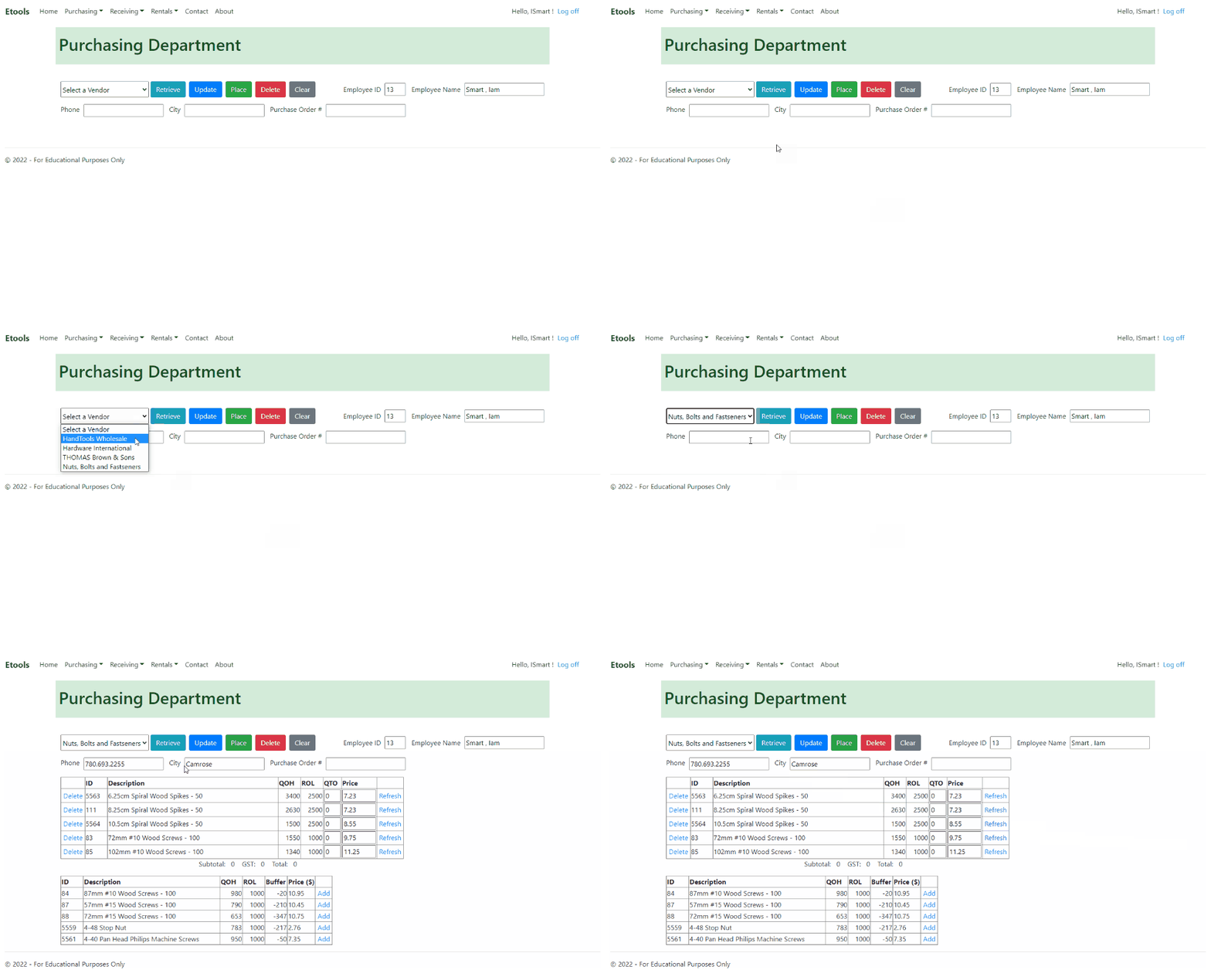
Selecting a vendor on the purchasing page. Note that no purchase orders have been made with this vendor (no purchase order number), so a suggested order is displayed. The lower table shows additional suggested items to order.
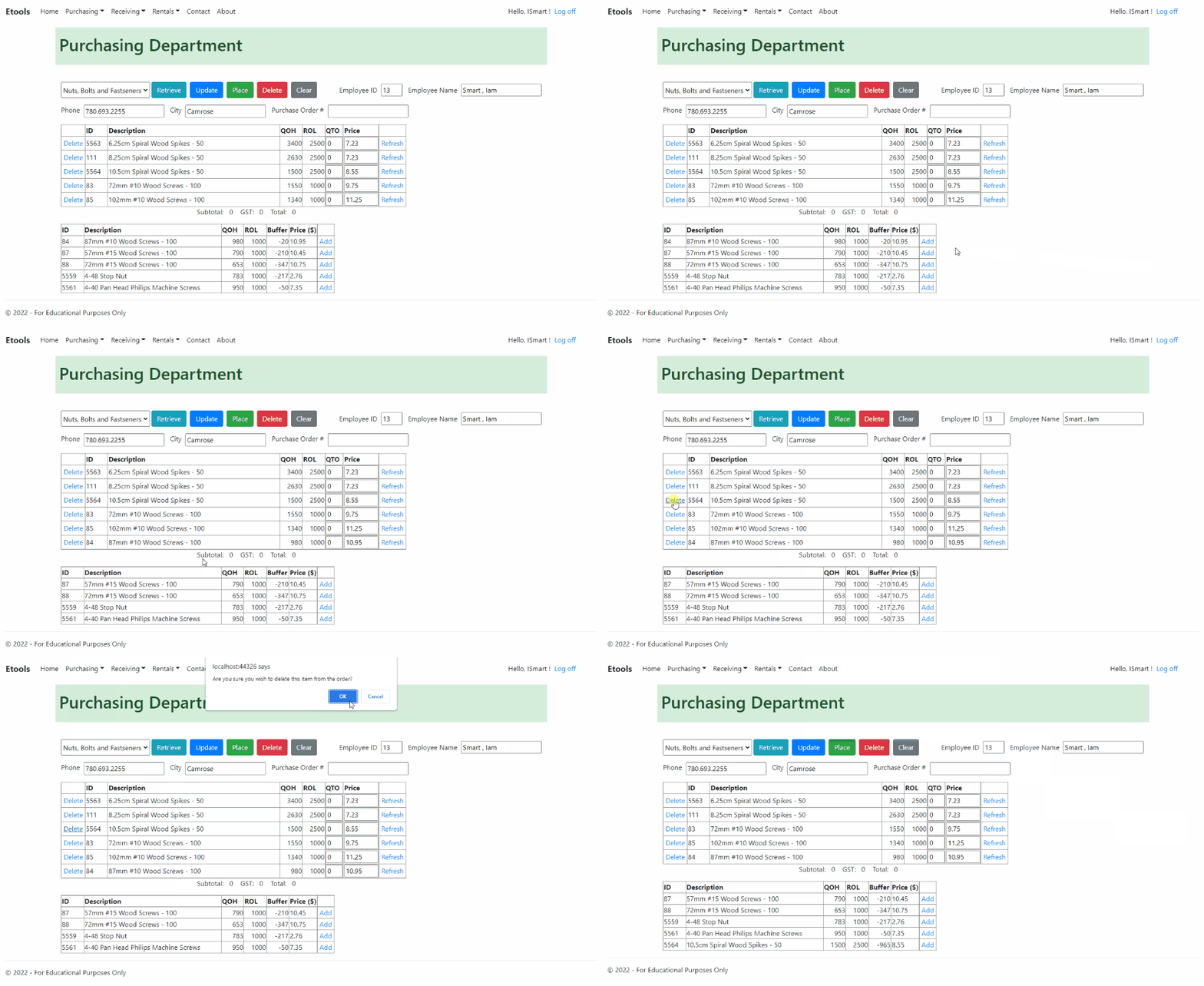
You can add the items from the Suggested Items table to the Order table.
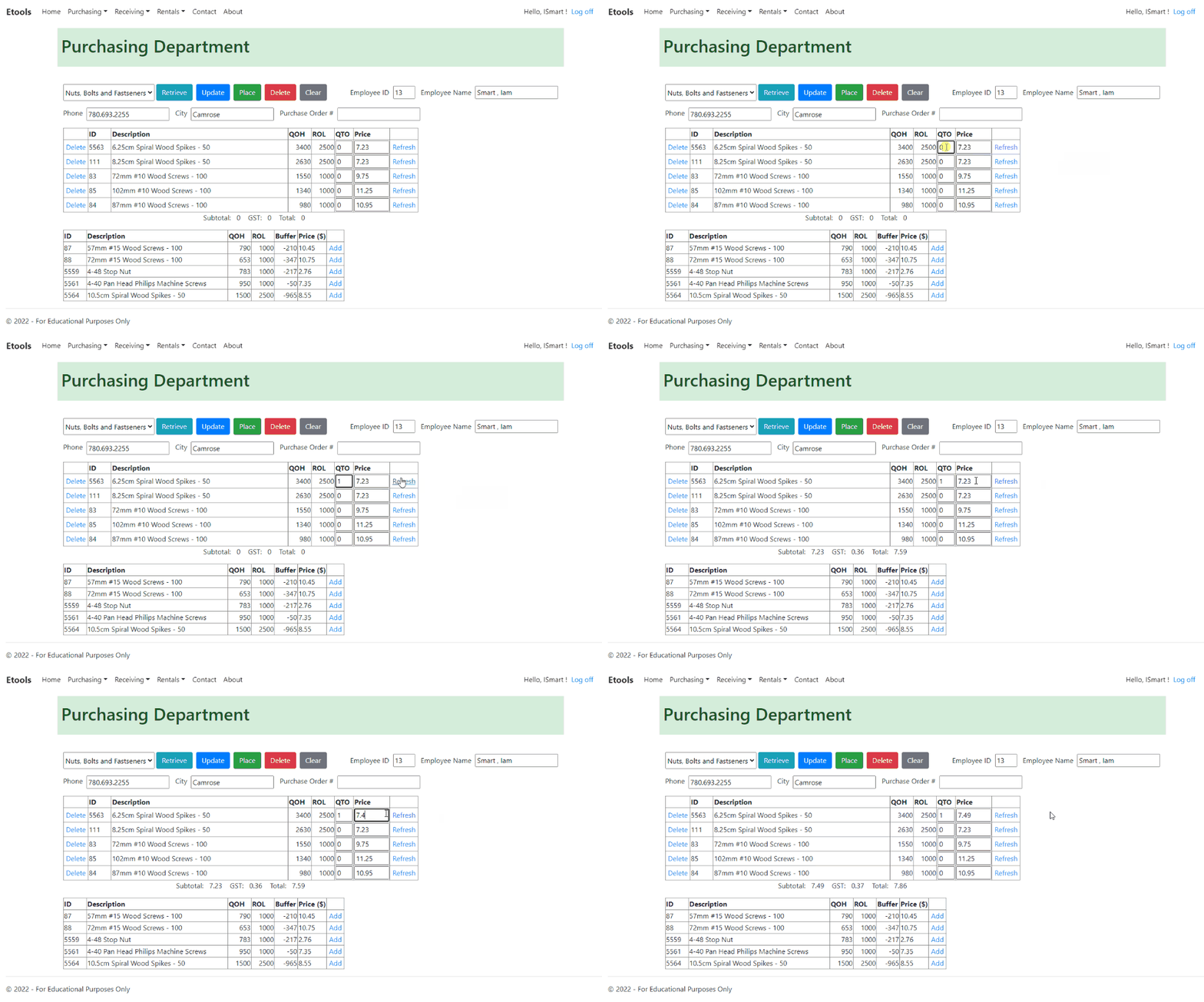
You can alter each item's quantity and/or price on the Order table, click Refresh, and the order's totals will be updated.
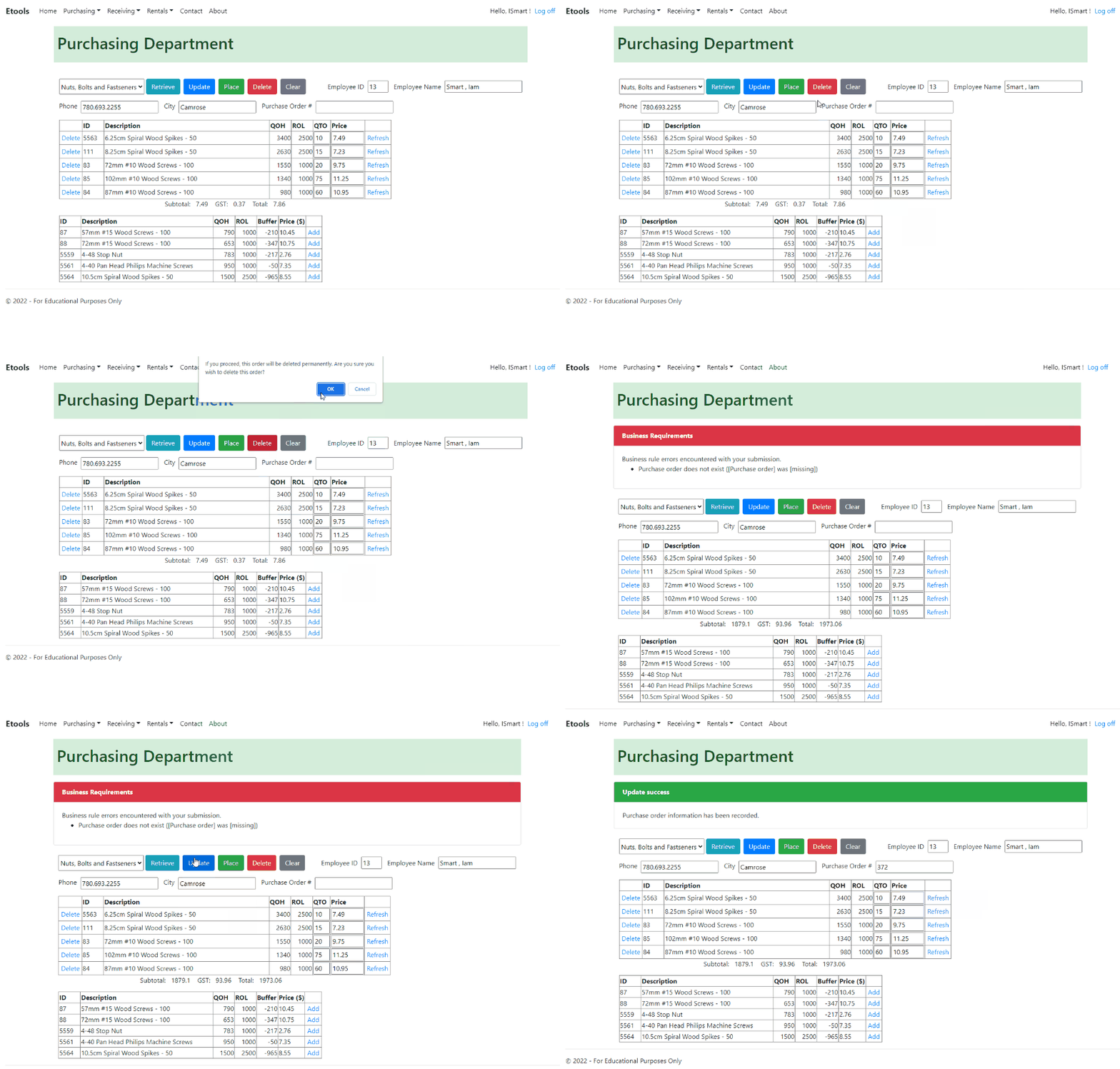
Pressing the Update, Place, or Delete button will always update the order totals. You cannot delete unsaved orders, but you can update them, which will save the order and give it a purchase order number (with updated totals if they were not updated prior).
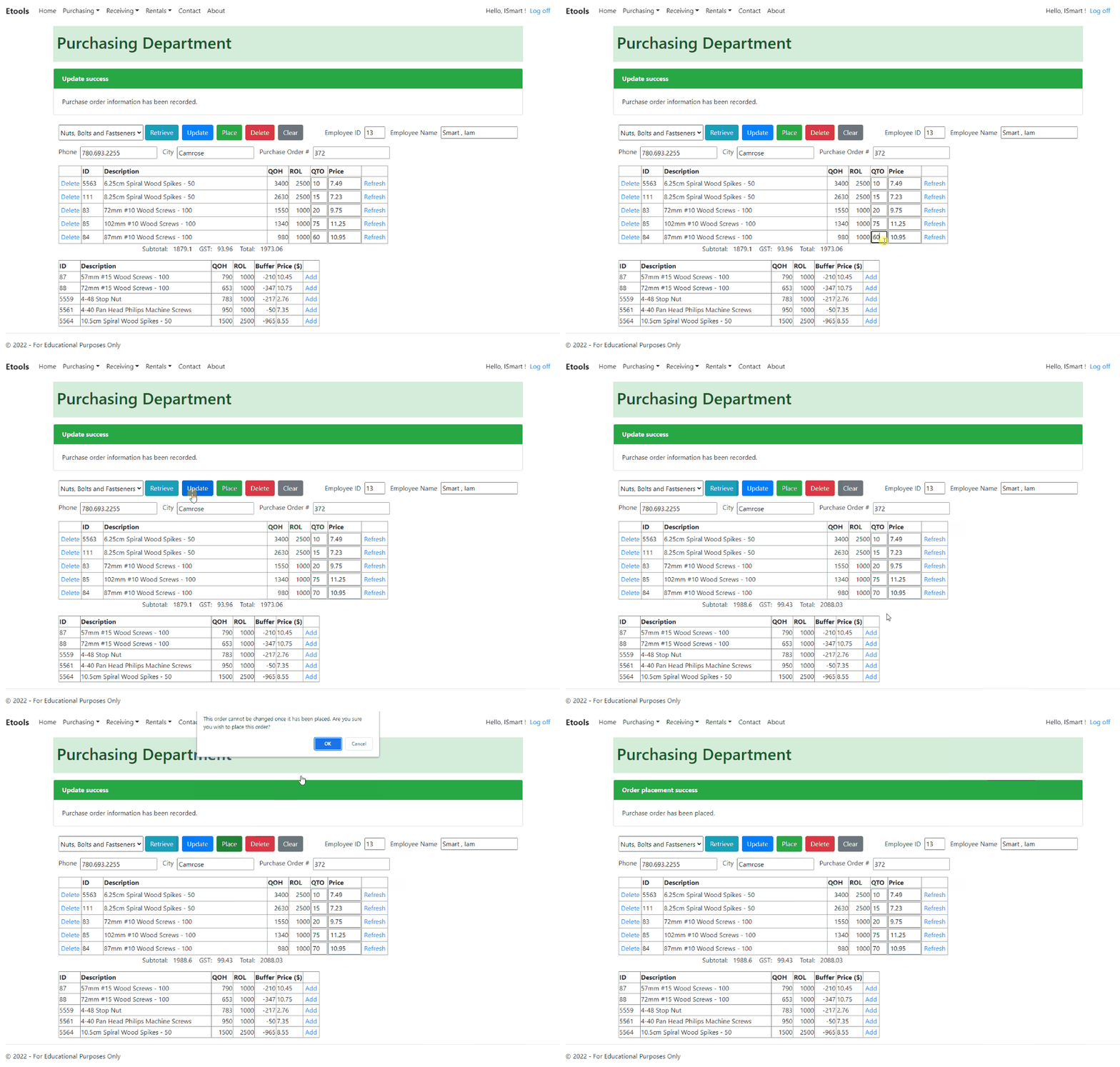
You can update and place active unplaced orders. There is no visual indicator to the user whether an order in the system has been placed because this was not a requirement, nor was it suggested for the project. Understanding how vital it is for users, I would add an indicator if I were to do it again.
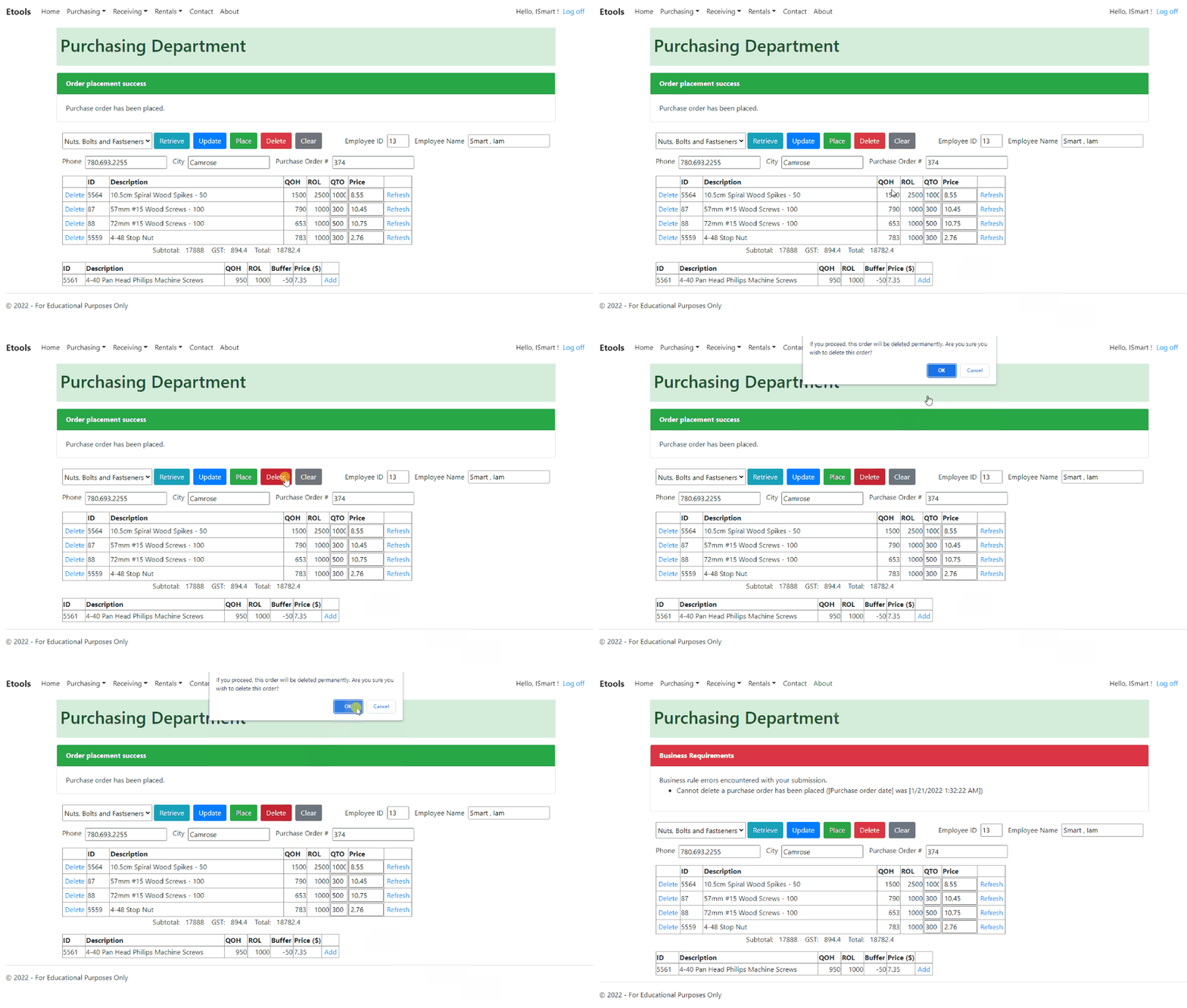
You cannot delete placed orders.
Reflections
Challenges
This project was intimidating as I was unsure whether I was skilled enough entering this project. Once I worked away at it, I realized just how much I'd learned in my courses and realized how my knowledge and practice were coming together for this application. It was rewarding finishing it, as this project and course was challenging, but they challenged me to develop things I did not think I was capable of creating.
Due to a misunderstanding, I had an error in how the Suggested Items table was being populated. I made an assumption on how the table operated instead of getting clarification, causing my page to just miss perfection in following specifications. The issue was not major nor page-breaking, but it was big enough to be noticed. I learned that even the most detailed specifications can be ambiguous and to get clarification if there is any doubt on my end.
Final Thoughts
I can't think of any other project I was more relieved of finishing than this one. Application development is not an easy thing to learn in under 8 months and there is certainly more to learn. I am grateful for my institution for teaching me everything I needed to learn, and I am especially glad for taking detailed notes and practicing my skills prior to this project. The Purchasing Page is my most comprehensive CRUD project due to the structure of the application and the amount of skills one needs to possess to create it.
I am glad my fundamental knowledge of application programming was based on C# and .Net Framework, as the strict OOP language and architecture ensured that I stuck to proper standards and maintained good programming practices. I hope I can revisit this stack again in the future.